DDEV share: Sharing a DDEV project with other collaborators in real time

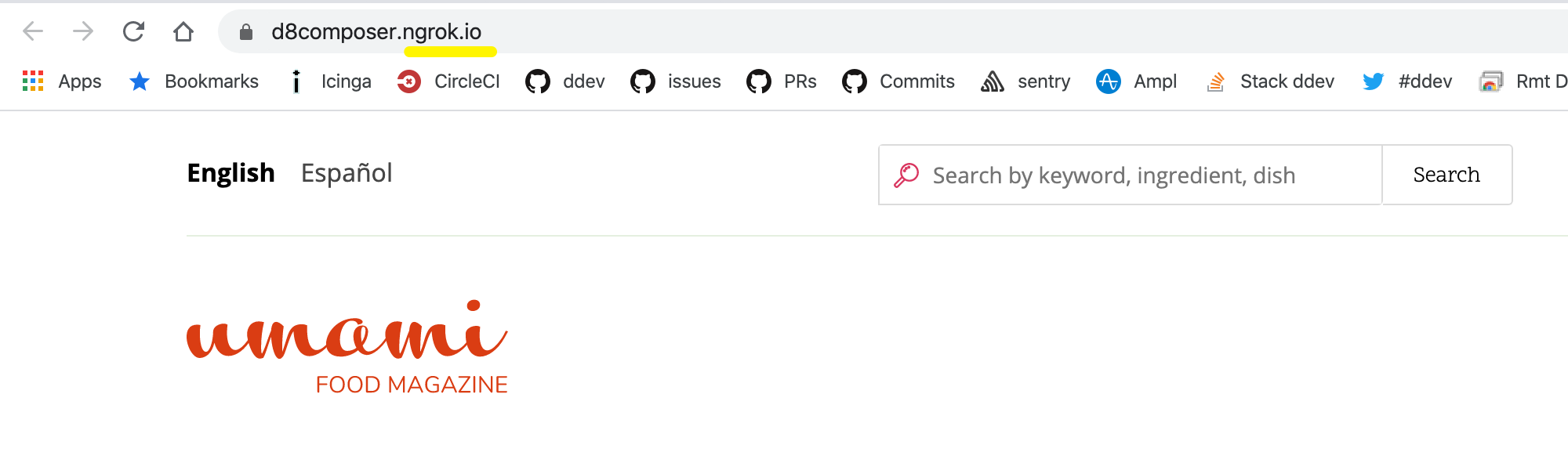
Even though DDEV is intended for local development on a single machine, not as a public server, there are a number of reasons you might want to expose your work in progress more broadly:
- Testing with a mobile device
- Sharing on a local network so that everybody on the local network can see your project
- Some CI applications
There are at least three different ways to share a running DDEV project outside the local developer machine:
ddev share(using a tunnel provider like ngrok or cloudflared to share over the internet)- Local name resolution and sharing the project on the local network
- Sharing the HTTP port of the local machine on the local network
1. Using ddev share to share project (easiest)
ddev share proxies the project via a tunnel provider, and it’s by far the easiest way to solve the problem of sharing your project with others on your team or around the world. DDEV ships with two built-in providers:
- ngrok (the default) — free to use, though a paid plan gets you a stable subdomain. Configured with a token stored in
~/.config/ngrok/ngrok.yml. - cloudflared — free, and doesn’t require an account at all.
Run ddev share to use the default provider, or ddev share --provider=cloudflared to use Cloudflare’s tunnel instead. Either way, DDEV prints the resulting URL, ready to hand to a collaborator or open on your mobile device. Run ddev share -h for more, or set a default provider globally with ddev config global --share-default-provider=cloudflared.
CMSs like WordPress and Magento 2 make this a little harder, since they only respond to a single base URL that’s coded into the database. See New ddev share Provider System for pre-share/post-share hooks that automate the URL swap for WordPress, Magento 2, and TYPO3, and the sharing docs for setting up a stable subdomain with either provider.
2. Using sslip.io and or your own name resolution and open up to the local network
The second solution is to not use *.ddev.site as your project URLs, but to use DNS that you control (and that points to the host machine where your project lives). In general you’ll want to use HTTP URLs with this approach, because it requires manual configuration of the client machine to get it to trust the development certificate that ddev uses (and configures with mkcert on the local machine).
- Use sslip.io to point a domain name to your host. If your computer’s IP address is 192.168.5.101, you can use a domain name like mysite.192.168.5.101.sslip.io and that domain name will point to your computer. Now add that as an additional_fqdn to your project,
ddev config --additional-fqdns=mysite.192.168.5.101.sslip.ioandddev start. Now people in your internal network should be able toping mysite.192.168.5.101.sslip.ioif your firewall allows it. (Note that if you have other convenient ways to create a DNS entry for this, you can use those instead of using sslip.io.) - Configure ~/.ddev/global_config.yaml to bind to all ports:
ddev config global --router-bind-all-interfaces && ddev poweroff && ddev start - Now mobile apps or other computers which are on your local network should be able to access your project. Use the http URL rather than the HTTPS URL because computers outside yours don’t know how to trust the developer TLS certificate you’re using. (You can use
ddev describeto see the HTTP URL, but it’s typically the same as the HTTPS URL, but withhttp://instead ofhttps://.) - Make sure your firewall allows access from your local network to the main interface you’re using. In the example here you should be able to ping 192.168.5.101 and
curl [<http://192.168.5.101>](<http://192.168.5.101>)and get an answer in each case. - If you’re using WordPress or Magento 2 you’ll need to change the base URL, as described in New
ddev shareProvider System.
3. Exposing a port from the host
DDEV’s web container also exposes an HTTP port directly (in addition to the normal routing by name and via ddev_router). You can expose this port and it may be a useful approach in some situations.
- Add a
docker-compose.localnet.yamlto your project’s.ddevdirectory. This example will expose HTTP on port 8080:version: "3.6" services: web: ports: - "0.0.0.0:8080:80" - "0.0.0.0:8443:443" ddev start- Make sure your firewall allows access to the port on your host machine.
- If you’re using WordPress or Magento 2 you’ll need to change the base URL, as described in New
ddev shareProvider System. - Each site on your computer must use different ports or you’ll have port conflicts, and you can’t typically use ports 80 or 443 because ddev-router is already using those for normal routing.
Computers and mobile devices on your local network should now be able to access port 8080, on the (example) host address 192.168.5.23, so http://192.168.5.23:8080. You’ll probably want to use the HTTP URL your coworker’s browser will not trust the developer TLS certificate you’re using.
What next?
Find us and other DDEV community experts via one of our support channels.
Take a look around the project on GitHub and feel free to contribute!